



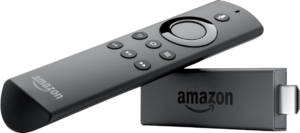
Get your favorite apps and streaming services on your Fire TV Stick with these simple steps.
From the home screen of your device, hover over the Find option.

Click Search

Search for and select Downloader.

Choose the Downloader app.

click "Download".

Once the app finishes installing click Open.

Return to the home screen and open Settings.

Click My Fire TV.

Choose Developer options.

Click Install unknown apps.

Find the Downloader app and click it.

This will turn Unknown Sources to On for the Downloader app. This will enable side-loading on your device.

Launch Downloader.

Click Allow.

Click OK.

Type the following URL exactly as shown here: https://www.iptvsmarters.com/smarters.apk
And click Go.

Wait for file to download.

Click Install.

Click Done.

Open IPTV smarters then select Login with Xtream codes api.
Enter the login details that we sent you via Email or Chat
In Downloader app, enter this URL: https://tivimates.com/tiviapk and click "Go".

Wait for file download to finish, then click "Install" and open the app when installation completes.
Click "Add Playlist", choose "Xtream Codes", enter login details sent via Email or Chat.

Follow these steps to get the app on your Android smartphone or tablet.
Go to Settings > Security and enable "Unknown Sources" to allow installation from outside the Play Store.
Download the application APK file from the official website.
Download Link: https://www.iptvsmarters.com/iptv-smarters-5.0.apk
Open the downloaded APK file and follow the installation prompts.
Choose "PLAYER API" from the available options
Click "Add Playlist" and enter your credentials:
Any Name: You can write your username here
Username: Use username provided by Us
Password: Use password provided by Us
URL/Host: Use the working URL provided by Us.
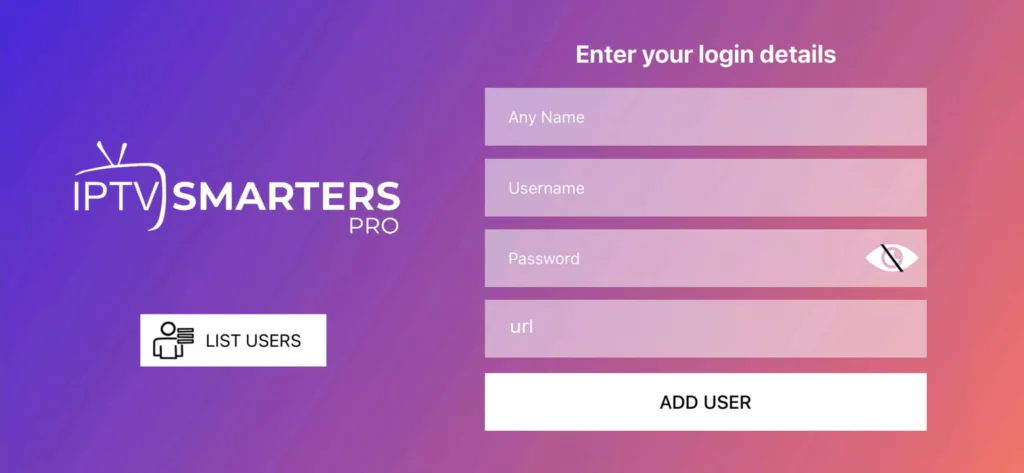
You can skip the PIN setup or add your own PIN (Optional)
Your IPTV service will now be ready to use!
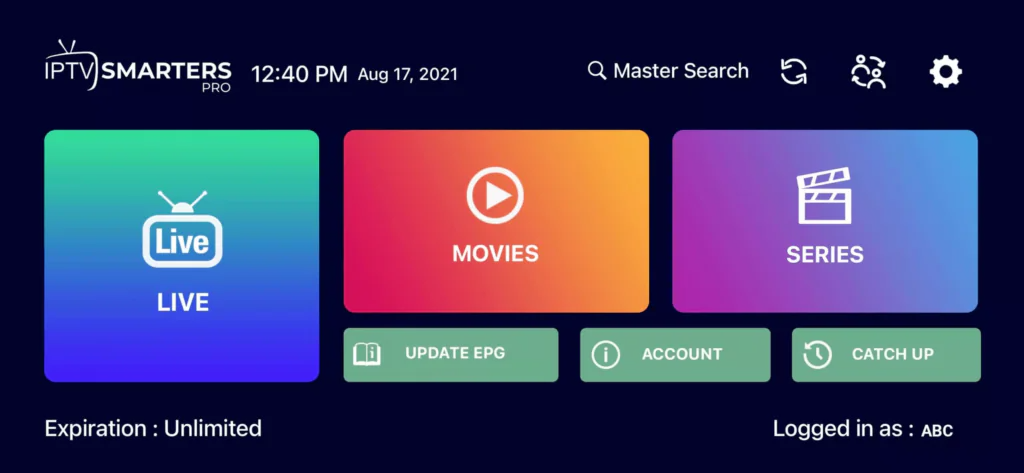

Get the app on your iPhone, iPad, or Apple TV with these instructions.
Open the App Store on your iOS device or the TV App Store on Apple TV.
Use the search function to find the application by name.
Tap the download button and wait for installation to complete.
Choose "PLAYER API" from the available options
Click "Add Playlist" and enter your credentials:
Any Name: You can write your username here
Username: Use username provided by Us
Password: Use password provided by Us
URL/Host: Use the working URL provided by Us.
You can skip the PIN setup or add your own PIN (Optional)
Your IPTV service will now be ready to use!

Get the app directly on your Samsung, LG, or other Smart TV models.
Navigate to your TV's app store (Samsung Store, LG Content Store, etc.).
Use the search function to find the application.

Get the application on your Windows PC or Macbook.
Download IPTV Smarters Pro from the official website:
Download Link: https://iptv-smarters-pro.en.uptodown.com/windows
Run the installer and follow the setup wizard, then open the application
Click on "Accept" to agree to the license terms and conditions
Choose "PLAYER API" from the available options
Click "Add Playlist" and enter your credentials:
Any Name: You can write your username here
Username: Use username provided by Us
Password: Use password provided by Us
URL/Host: Use the working URL provided by Us.
You can skip the PIN setup or add your own PIN (Optional)
Your IPTV service will now be ready to use!
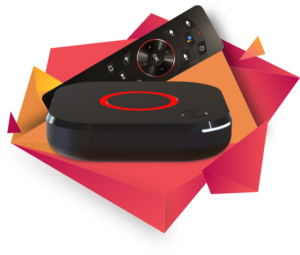
Configure your Mag Box to access all available channels and content.
Connect your Mag Box to the internet via Ethernet or Wi-Fi.
Navigate to System Settings in the main menu.
Go to: Settings → System Settings → Servers → Portals
Set Portal 1 Name: IPTV Shop
Set Portal 1 URL: (see your confirmation email)
Set Portal 2 Name: Leave this empty - only if you ordered the second subscription
Set Portal 2 URL: Leave this empty - only if you ordered the second subscription
Save all settings and reboot your device
After the box restarts, wait until the TV screen shows the channels loading
Now find the best IPTV service and get non-stop streaming of your favorite tv service, sports, and movies.
©2014 Skylux TV. All Right Reserved.